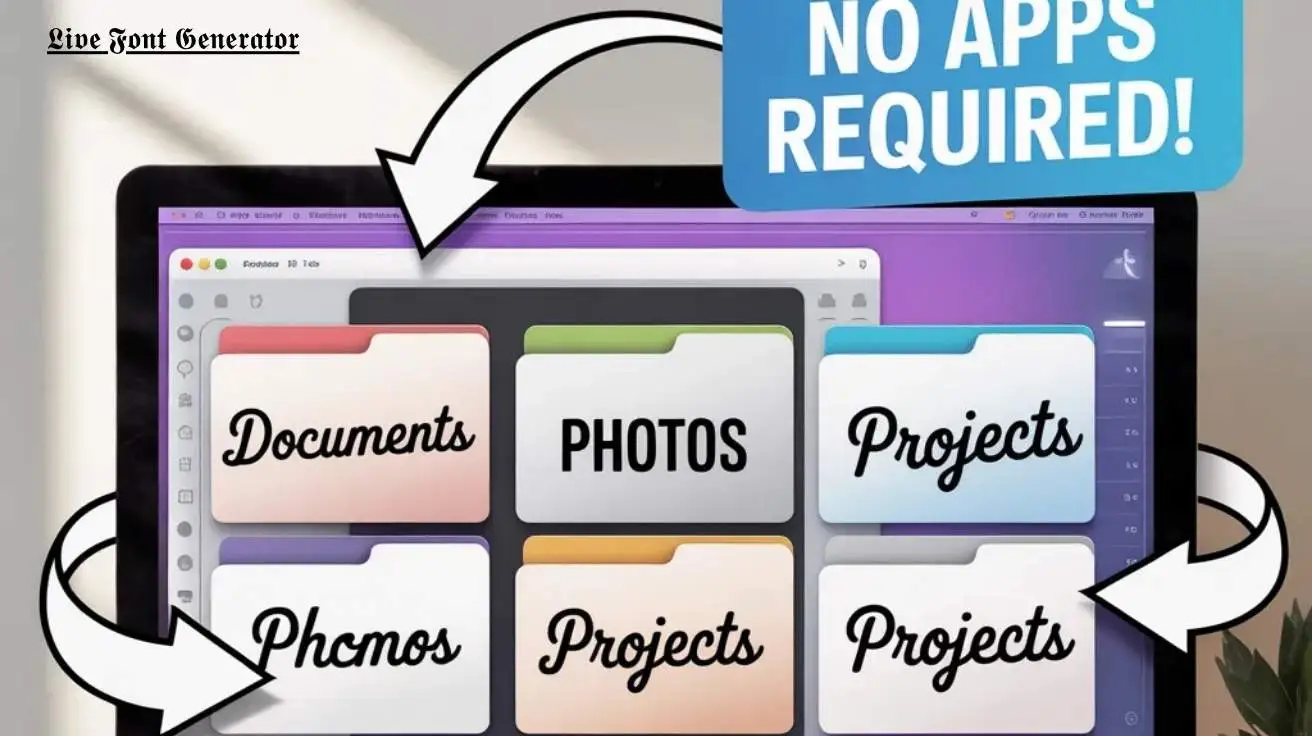
Folder & File Names – How to Customize with Cool Fonts (No App Needed)
Introduction
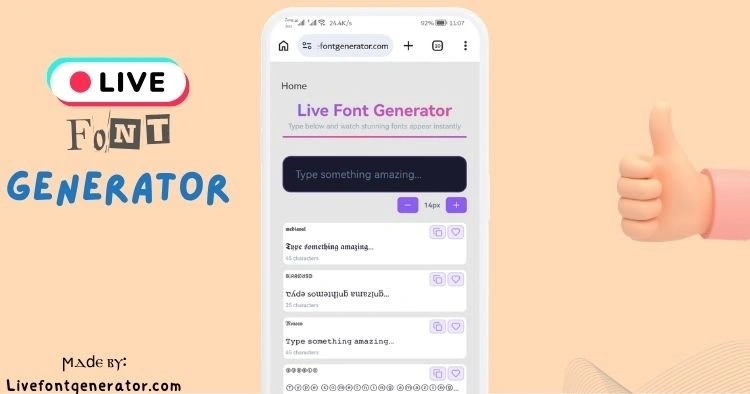
Here is a creative way to customize your folder and file names without needing any app. Simply type the name of the file in the text box, and you can give it a cool new name.
Your desktop is full of folders. Documents, downloads, projects. They all look the same. Boring. Hard to find.
What if your folders looked different? What if your file names caught your eye immediately?
You can change that. No software. No downloads. Just a font generator online and a few clicks.
In this guide, you will learn how to rename folders and files using unique fonts. Glitch, cursed, tattoo – any style you want. Let us dive in.
Quick Answer
How can I customize folder and file names with cool fonts without any app?
You can customize folder and file names using a font generator online. Type your desired folder name into the font generator. Choose a style like glitch, cursed, or tattoo font. Copy the styled text. Paste it as your folder or file name. Works on Windows, Mac, and Linux. No software installation needed.
Popular font styles for folders:
- Glitch font generator – for edgy, digital looks
- Cursed font generator – for creepy or unique names
- Tattoo font generator free – for bold, artistic styles
- Bold and italic – for clean organization
Why Customize Folder and File Names?
Most people never think about folder names. They type “Project” or “Work” and move on.
But here is the truth. Visual cues help you find things faster. A folder that looks different stands out. You click it first.
Benefits of custom folder names:
| Benefit | How It Helps |
|---|---|
| Faster navigation | Unique fonts catch your eye |
| Better organization | Categorize by font style |
| Personal expression | Make your computer feel like yours |
| No cost | Completely free |
| No software | Works in your browser |
I have been using custom folder fonts for over three years. My workflow improved because I stopped searching and started finding.
How It Works – The Simple Process
You do not need to be a tech expert. Here is the step-by-step process.
Step 1: Open a Font Generator Online
Go to LiveFontGenerator.com or any font generator online. You will see a text box.
Step 2: Type Your Folder Name
Type whatever you want to name your folder. For example: “Projects” or “Design” or “Archive”
Step 3: Choose Your Font Style
Scroll through the styles. Pick one that fits your folder purpose.
Step 4: Copy the Styled Text
Click on your chosen style. It copies automatically to your clipboard.
Step 5: Rename Your Folder
Right-click your folder. Select “Rename.” Paste the styled text. Press Enter.
Done. Your folder now has a custom name. Takes less than 30 seconds.
Best Font Styles for Folder and File Names
Not every font works well for folders. Some are hard to read. Some do not display properly.
Here are the best styles based on my testing across Windows and Mac.
Glitch Font Generator – For Edgy Folders
A glitch font generator creates distorted, digital-looking text. Perfect for:
- Testing folders
- Development projects
- Personal archives
- Anything technical or experimental
Example: “Ḧ̸́̚ȯ̷͆m̵͒̐e̵̛̚w̷̅͗ö̸́̚ṙ̷͆k̵͒̐”
Best for: Programmers, designers, tech enthusiasts
Cursed Font Generator – For Unique Looks
A cursed font generator makes text look unsettling or unusual. Great for:
- Hidden folders
- Personal projects
- Creative work
- Folders you check rarely
Example: “C̷̛̈́u̷̇͆r̵͒̐s̵̛̚e̷̅͗d̸̈́̚”
Best for: Artists, writers, gamers
Tattoo Font Generator Free – For Bold Statements
A tattoo font generator free gives you bold, artistic lettering. Perfect for:
- Important project folders
- Work folders you access daily
- Archive or backup folders
- Any folder needing emphasis
Example: 𝕿𝖆𝖙𝖙𝖔𝖔 𝕻𝖗𝖔𝖏𝖊𝖈𝖙
Best for: Everyone – readable and stylish
Cursive and Bold – For Clean Organization
Sometimes simple is better. Cursive and bold fonts work for:
- Regular work folders
- Client projects
- Personal documents
Example: 𝓟𝓮𝓻𝓼𝓸𝓷𝓪𝓵 or 𝗪𝗼𝗿𝗸
Step-by-Step Guide with Examples
Let me walk you through a real example.
Before: A folder named “Taxes 2026”
After using tattoo font: 𝕿𝖆𝖝𝖊𝖘 2026
Result: You see it immediately. No searching through identical plain-text folders.
Another example – for designers:
Before: “Client Assets”
After using glitch font: C̷l̷i̷e̷n̷t̷ ̷A̷s̷s̷e̷t̷s̷
Result: Stands out from regular work folders.
Where to Use Custom Folder Names
| Operating System | Works? | Notes |
|---|---|---|
| Windows 10/11 | ✅ Yes | Fully supported |
| macOS | ✅ Yes | Works on all versions |
| Linux | ✅ Yes | Depends on file system |
| Cloud drives (Google Drive, Dropbox) | ⚠️ Limited | May not display special characters |
Pro tip: Test one folder first. Make sure it displays correctly on your system.
Common Mistakes to Avoid
Mistake 1: Using Hard-to-Read Fonts
Some fonts look cool but are impossible to read. Avoid overly complex styles for folders you use daily.
Mistake 2: Renaming System Folders
Never rename Windows system folders (Program Files, Windows, System32). This can break your computer.
Mistake 3: Using Incompatible Characters
Some Unicode characters do not work on all systems. Test before renaming important folders.
Mistake 4: Forgetting to Backup
If you rename a folder and something breaks, you need the original name. Keep a list of original names in a text file.
Read more: How to use LiveFontGenerator.com fonts to Instagram, Facebook & WhatsApp Bios
Why Use a Font Generator Online Instead of Apps?
Many people ask me: “Why not just download an app?”
Here is my answer after testing both methods for years.
| Method | Pros | Cons |
|---|---|---|
| Font generator online | Free, no install, works anywhere, instant | Requires internet |
| Desktop app | Works offline | Takes space, costs money, needs updates |
A font generator online gives you hundreds of styles instantly. No waiting. No payments. No disk space.
Advanced Tips for Power Users
Tip 1: Combine font styles for different folder categories.
- Use tattoo font for work folders
- Use glitch font for testing folders
- Use cursive for personal folders
Tip 2: Add emojis to folder names alongside fonts.
Example: “📁 𝕻𝖗𝖔𝖏𝖊𝖈𝖙𝖘”
Tip 3: Keep a master list of folder names in a text file. If you need to reset, you have the originals.
Tip 4: Test on a USB drive first. If something goes wrong, only the USB drive is affected.
Frequently Asked Questions (FAQs)
Will custom folder names work on all computers?
Yes, if the computer supports Unicode. Windows 10/11, Mac, and modern Linux all support Unicode folder names. Very old systems may show squares.
Can I use a glitch font generator for work folders?
Yes, but be careful. Some coworkers may find glitch fonts hard to read. Use tattoo or bold fonts for shared folders.
Is tattoo font generator free really free?
Yes. LiveFontGenerator.com offers all tattoo fonts for free. No hidden fees. No signup required.
Will custom folder names slow down my computer?
No. Font changes only affect how the name looks. The computer still finds the folder the same way. No performance impact.
Can I rename cloud folders (Google Drive, Dropbox, OneDrive)?
Yes, but some cloud services may not display special characters correctly. Test with one folder first.
What happens if I delete the font generator website?
Nothing. Once you copy and paste the name, it stays on your folder. The website is only needed to generate the text.
Can I use cursed font generator for important folders?
Yes, but cursed fonts can be hard to read quickly. Use them for folders you access rarely. Use clean fonts for daily folders.
How do I change a folder name back to normal?
Right-click the folder. Select Rename. Delete the special characters. Type the normal name. Press Enter.
Conclusion
Customizing folder and file names is easier than you think. No apps. No downloads. Just a font generator online.
You can use a glitch font generator for edgy folders. A cursed font generator for unique looks. Or a tattoo font generator free for bold, readable names.
Your action step today:
- Open LiveFontGenerator.com
- Type a folder name you use often
- Pick a style (try tattoo font first)
- Copy and paste it to rename your folder
- Notice how much faster you find it tomorrow
Your desktop should work for you, not against you. Custom folder names are a small change with a big impact.
Start with one folder today. You will be surprised how much you like it.